info link

This website is under construction..If found any error Downloading problum Pease contect Us :- Mughees1997@gmail.com

Showing posts with label Blogger tricks. Show all posts

Monday, 17 June 2013

free download live traffic feed for blogger/Feedjit

Feedjit lets you see friends and visitors as they arrive on your blog or website. Know when your best friends read about your latest adventure. Be alerted when your most important clients view your latest product offering. Feedjit lets you know, right now, who is visiting your site. Simply add the Live Traffic Feed and instantly start seeing who is visiting your site as they arrive.
First click on download
Then click on Skip ad 
Sing up 
Enjoy


Or


Sunday, 16 June 2013

free download high quality blogger themes or templates


FREE download high quality themes here

Monday, 3 June 2013

How to Setup Blogger Custom Domain

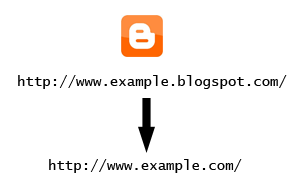
By default, your blog address is in this format; http://YOURBLOG.blogspot.com/. As you can see, all blogs hosted on Blogger have blogspot.com included in their address. Such an address is difficult to remember and it is not suitable for a professional blog. Traditionally, switching to a personalized domain required research, a web hosting comparison and the purchase of relatively expensive hosting. Fortunately, Blogger has made arrangements for those who are looking for free or cheap hosting while also upgrading to a more personalized domain name. Now, you can simply buy a custom domain directly through Blogger and forget about setting it up. In this tutorial, I'll explain this whole process of searching, buying and setting up a custom domain.

The Cost of a Custom Domain

Typically, a custom domain costs you around 10$ per year. You have to renew it annually to keep using it. Please note that Blogger provides us free hosting so no need to buy hosting.

Lets Buy & Setup a Custom Domain!

Follow these steps:
  1. Log in to your Blogger account.
  2. Go to 'Settings' then 'Publishing' tab.
  3. Click 'Switch to: Custom Domain' option.
  4. Enter the desired domain name and check its availability.
    If you're looking for a .com domain then it might be difficult to find a great domain because a lot of people chose .com domain names so good luck for that. You can also chose .net, .biz, .info or .org domains but they're not as popular as .com domains.

    How Long Will it Take to Shift to a Custom Domain?


    After setting up a custom domain, it might take up to 3 days to move to the custom domain. So, don't worry about that. Blogger also takes care of the settings behind the scenes.

    What Happens to Existing Address, Visitors & PageRank?


    Here comes the awesome features of Blogger. Your existing visitors will be automatically redirected to the custom domain. The PageRank is also kept intact so don't worry about that as well. 

Wednesday, 29 May 2013

Create a Floating Feedback For Blogger


Asking your visitors to leave you suggestions or feedbacks can be pretty easy only if you provide them with an easy access to your feedback page. Readers are often lazy and getting them to leave a feedback is often tough. However you can let them comment willingly if you add a floating feedback button to your blog, that floats as a reader scrolls down or up.


 This floating button can be made more user friendly and eye-catching if you add a roll over effect to it. Hover your mouse over my feedback button at the bottom-left corner of this page and observe how the button magnifies when you hover your cursor over it. Liked it? Lets now learn the TNT of adding a Feedback Button to your blogs, along with a Floating Back-To-Top Button, which I will discuss later. 
For a feedback button you will need two images, one small (30 by 145 pixels) and one large (35 by 170 pixels) You can also use my feedback button if you wish,


You will then need to upload these images to an image hosting web service like Photobucket or other services like Google sites and sigmirror
Get URLs for both these images and then follow the steps below
  • Sign in your blogger account
  • Go To Layout > Page Elements
Click on add a Gadget

Click on HTML/JavaScript


Now Copy paste the code below into the HTML/JavaScript widget, 

 <!--TNT-by-STC-FEEDBACK-IMAGE-STARTS-->
<a style="display:scroll;position:fixed;bottom:5px;left:0px;" href="URL Of Feedback Page" title="Your Feedback is always welcomed!"><img onmouseover="this.src='URL of your Larger Feedback button'" src="URL Of Your Smaller Feedback button" onmouseout="this.src='URL Of Your Smaller Feedback button'"/></a>
<!--TNT-by-STC-FEEDBACK-IMAGE-STOPS-->

Note:- Remember to replace the Colored text with the required detailed specified. You can change the text “ Your Feedback is always welcomed! “ with any message you like. You must have a Contact page, where users could fill up an Email form to send you their Suggestions..


Useful Tips To Reduce Blog Load Time Make your blog Faster.


Almost every newbie blogger fails when it comes to reducing blog load time. Most of the tutorials that are available on reducing the time taken for a website to load are often un-clear or incomplete. We decided to share our way of solving this problem. Below are 11 really interesting and important tips to decrease the load time of your blogs by almost 90%. 


  1. Link To All images Inside Your Template From Blogger

    Most of you use templates that are not officially provided by Blogger. These templates often contain images that are saved on services like tinypic or photobucket. When your blog loads the browser has to connect to all servers which link to your images, as a result leading to immense delay in the loading time of your blog. What you must do is replace all such images with those that you have saved inside blogger. The advantage of doing so will be this that the browser will need to connect only to blogger while loading your images. Thus saving time.
  2. Save All Images in GIF or PNG Format

    GIF stands for “Graphics Interchange Format” and PNG stands for “Portable Network Graphics” Both these formats are well compressed, smaller in size and widely supported by all browsers. But if size is concerned PNG compresses far better than GIF. In typical cases up to 5-25%.  There are some transparency issues with PNG in IE6 but since IE7 is widely used these days, transparency is nor more an issue. Using any of these image formats will tremendously reduce the load time of your blogs by 60% i.e 70-90KB The size is an approximate for my blog and true size depends on the number of images you use.
  3. Give Proper Dimensions To Images

    Giving each image a specific width and height will make it easy for the browser to load the image quickly. Always decrease the size of an image if the original size is larger. The general HTML code for an image looks like the one below,
    <img width=”” height=”” src=”URL Of Image” />
    The width and height will require a value in pixels. One pixel equals a dot on the screen. A Full size image on my blog will have a width=”590px” and height can be as long as I want. 590px almost equals the width of my posts. Hope that gives you an idea on how to choose width and height values for your images. Browsers find it easy to load images whose dimensions are specified. Make sure you make it your habit to specify a proper size for your images. If you use Windows Live Writer your life will become far easy.
  4. Don’t Use An Image As A Background

    If you are using any image as a background then kindly remove it. A background Image repeats itself horizontally and vertically and is responsible for 50% slow load time. Just remove it and see the difference. To remove a background image simply find this CSS code inside your template,                (Tip:- Its located just at the top of your blog. Simply search for body)
    body { background: #7AA1C3 url(http://xyz.com/blabla.jpg)
    width: 980px;
    color: #333; 
    font-size: 14px; 
    font-family: Georgia; 
    margin: 0 auto 0; 
    padding: 0; }
    This code will look different in your template but you should be concerned only with thebolded black text. Simply Delete url(http://xyz.com/blabla.jpg) and save your template. Give a simple color to your background. #7AA1C3 refers to Background Color. You can change it by using my Hexadecimal Color Chart 
  5. Save All JavaScript Inside Blogger

    Why should you link to external sites for storing your JavaScript whilst you can easily save it in Blogger! Save All your JavaScript codes inside your templates just above </head> using the code below,
    <script type='text/javascript'>
    //<![CDATA[
    Paste Your JavaScript Code Here
    //]]>
    </script>
    The bolded text is where you must paste the JavaScript code that you use in your template by linking to an external site. 
    To find a JavaScript URL that links to external site, search for <script type='text/javascript'> inside your template (Make sure to check “expand widget templates” box at top-right corner). Once you find such linking, open that link in a browser. You will see large piece of complex text in the window and that is your JavaScript code. Simply copy it and paste it in the code shared above. Replace All JavaScript codes inside your template with the code above, ensuring that you have extracted the code from the link and pasted it in the code above.
  6. Always Accept Quality and Well Scripted Blogger Templates

    The major mistake most bloggers make is to upload any template that attracts them. Most un-official Blogger templates that are available in blogosphere are often created by people who are not well aware with proper use of HTML and JavaScript. A improper scripted template with empty tags ,unwanted tags and broken JavaScript often make Job tough for search engine spiders to crawl the content of your weblog. Further Browsers also waste precious time in reading broken scripts. If a JavaScript is not well coded or optimized, it can cause a readers PC to hang! Imagine this happening to readers accessing your blog. In Short use templates from authorities who have respect in blogosphere and from those who are certified professionals.
  7. Use Limited Advertisements

    If you are blogging only to get paid by displaying large chunks of ads from several sources than you are surely misusing this beautiful experience of blogging. Don’t make a blog a Fish Market. Display only few ads at major areas in your blog. Doing so will keep your blog interface clean and easy to be crawled and browse able. Each add that you display uses JavaScript that prolongs the page Load time. Make sure you limit all your ads to three.
  8. Don’t Link To Blog Directories

    It is a wrong perception that linking to several blog directories will bring you immense Traffic. When you link to several blog directories on your homepage, search engines loose trust on your blog due to excessive linking and browsers find it difficult to browse those tiny images that link to blog directories. All blog directories ask you to link back using a small image link on your blogs but doing so will only damage the success of your blog. I believe only on blogcatalog and mybloglog as relevant authorities to expect Traffic from. If you really want some amount of traffic from blog directories then trust only on blogcatalog and mybloglog. Moreover accept only the small piece of meta tag from them rather linking to them.
  9. Don’t Use Widgets From Blog Directories that Use Images

    I refer to the famous recent Viewers widget by blogcatalog and mybloglog. These widgets use JavaScript that link to these sites and also display images that add up to the load time of your blog. I use meta tags provided by them rather using their widgets. This helps in reducing the time taken for my pages to load. If you really want to use these widgets then try displaying few images on them, as low as 10.
  10. Summarize your Posts Using The Read More Link

    Full Length Posts at homepage is one of the biggest reasons why a blog has high load time. Summarize all your posts by using the continue Reading Link or Read More Link
  11. Show Only Four-Five Posts At Home Page

    Don’t show more than 4-5 posts at Homepage. Doing so will keep your readers busy reading different posts and they will also find it interesting to see how fast the homepage loads.
  12. Eliminate External Links

    Don’t use widgets that are from external sites other than blogger. Get rid of stat counters and use Google Analytics. Don’t store images on other services but Blogger. Save all JavaScript code inside blogger as discussed above. Don’t add links from blog directories, they don’t bring Traffic with exception of blogcatalog and mybloglog.

Note:-

Don’t Mess Up CSS and HTML Code By Removing The Line Breaks
Many Bloggers who are not well aware with web designing think that by removing the gaps between lines inside blogger template will reduce the size of a template. What they don’t realize is the fact that doing so will only reduce the template size by 2-4KB or even less, which is almost negligible reduction when it comes to fast browsers present today. Removing the line breaks between the codes inside blogger will distort the overall presentation of your template, making it difficult to edit it. Kindly avoid all such un-professional tips and always take suggestion from an expert before taking any such step.

Add Facebook Page Into Blogger Blog


Here I am going to show you how to create and add the Facebook fan page in to the blogger blog. just follow the simple steps to add Facebook fan page inside blogger blog
1. Create the Facebook page here

2.Open that link and add all the information and add your site details and add fan page picture.

3.Now from the admin penal go to manage and select EDIT PAGE
4.Now just click on resources and in resources click on “use social plugins ” 

5. Now just add the LINK of your Facebook page. (I have highlighted the place with yellow color where you need to add your Facebook fan page’s link )
6. Add your Facebook LINK and set your page like this. 
7. After setting your fan page widget appearance just click on Get Code.
8. Now you can see that you got 2 codes see in the figure. 


9. Now login to your blogger account and go to dashboard > Design > Edit HTML and find <body> (find it using ctrl + f) 

now just below <body> paste the 1st code and save your template. 

And add the second code where you want to show your Facebook fan page. 

Add Page Navigation Widget for Blogger/Blogspot


Page numbered navigation widget for blogger is  COOL widget to navigate blogspot pages very easely and looking feel good. All navigation widgets are based on JavaScript (this also)...........
. you can use this widget very easily and simple installation then others.


 Steps:

  1. Login To Your Blogger And Go To Design Section
  2. Then Click On Edit/Html
  3. Now search for </body> and place the below codes before it.
Code Code Code Code Code Code Code Code Code Code Code Code Code Code Code  


<style type="text/css">
    .showpageArea{padding:10px;color : #003366;text-align : left;width : 100%;}
    .showpage a {float:left;background:url(https:https://blogger.googleusercontent.com/img/b/R29vZ2xl/AVvXsEjUG2pSP7jLiKn6Ed1iri6pDxQ3drZsTZkgUg0B0G-1V_6kglRWbswIYYpAM5D69nq1aJBXjWsPll1tYtcP-HJOWibwFF__UdgFx-wzcSFx0ahOxsNv9QAi24vEGj7LXYHuRo-MnBj0V3GV/) no-repeat 0 0;text-align : center;width : 127px;height : 42px;text-align : center;display : block;margin : 0 5px;color : #333;padding-top : 6px;}
    .showpage a:hover {color : #333;margin : 0 5px;padding-top : 6px;}
    .showpageOf{float:left;padding-top : 6px;}
    .showpageNum a {background:url(https:https://blogger.googleusercontent.com/img/b/R29vZ2xl/AVvXsEho1YG8WwwzqVoGVQL2EsKpc1e0SpKdPf15LR1HQHEuoEBfW5eT6g-gGaakh9Onr4qvFX-dO8-KcRkyGHjpMLj_oeC_umUiNyFAP67glQCjcxUN1iiiL_smcbxmZHAp0fmXfF2G6N5O7j-A/) no-repeat 0 0;width : 37px;height : 42px;display : block;text-align : center;float : left;margin : 0 5px;padding-top : 6px;text-decoration : none;color : #333;}
    .showpageNum a:hover {background : url(https:https://blogger.googleusercontent.com/img/b/R29vZ2xl/AVvXsEho1YG8WwwzqVoGVQL2EsKpc1e0SpKdPf15LR1HQHEuoEBfW5eT6g-gGaakh9Onr4qvFX-dO8-KcRkyGHjpMLj_oeC_umUiNyFAP67glQCjcxUN1iiiL_smcbxmZHAp0fmXfF2G6N5O7j-A/) no-repeat 0 100%;color : #fff;}
    .showpagePoint {background : url(https:https://blogger.googleusercontent.com/img/b/R29vZ2xl/AVvXsEho1YG8WwwzqVoGVQL2EsKpc1e0SpKdPf15LR1HQHEuoEBfW5eT6g-gGaakh9Onr4qvFX-dO8-KcRkyGHjpMLj_oeC_umUiNyFAP67glQCjcxUN1iiiL_smcbxmZHAp0fmXfF2G6N5O7j-A/) no-repeat 0 100%;width : 37px;height : 42px;display : block;float : left;text-align : center;margin : 0 5px;padding-top : 6px;font-weight : bold;color : #fff;}
    .showpageNum a:link, .showpage a:link {text-decoration : none;color : #cc0000;}
</style>
<script style='text/javascript'>
var pageCount=5;
var displayPageNum=1;
var upPageWord="Previous";
var downPageWord="Next";
</script>
<script type='text/javascript' src="http://bloggerblogwidgets.googlecode.com/files/BeautifulPageNavi.js"/>


  Code Code Code Code Code Code Code Code Code Code Code Code Code Code Code 


#var pageCount=5; ~ Number of posts per page

5. Save template and Check your Blog
                             Thanks

Add a Cool Flying Twitter Bird To Your Blogs


With Twitter's worldwide popularity and with over 200 million users, generating 65 million tweets a day, it has become a must for every web master to use twitter sharing buttons and applications as much on his web as possible....
This lets users to easily  tweet our blogs and websites which thereby generates traffic for us in return.


  1. Go To Blogger > Design > Edit HTML
  2. Backup your template
  3. Search for </body>
  4. And just above it paste the code below
 Code Code Code Code Code Code Code Code Code Code Code Code Code Code Code
<script src='http://bloggerblogwidgets.googlecode.com/files/way2blogging.org-tripleflap.js' type='text/javascript'>
</script>
<script type='text/javascript'>
var twitterAccount = &quot;tricks&quot;;
var tweetThisText = &quot; <data:blog.pageTitle/> : <data:blog.url/> &quot;;
tripleflapInit();
</script>
Code Code Code Code Code Code Code Code Code Code Code Code Code Code Code

   5.  Replace tricks with your twitter account username.
    6.  Save your template and you are done!
    7.   View your blog to see it flying.

If you faced any problem just let me know. Have fun

Twitter Delicious Facebook Digg Stumbleupon Favorites More